
How To Manage Startup Programs On Windows 11
You are a small business owner in Melbourne. You grab coffee, check your phone, maybe answer a few emails, and Windows is still loading.
Sound familiar? The culprit is almost always the same: too many programs launching automatically when you turn on your machine.
Learning how to manage startup programs on Windows 11 is one of the fastest ways to reclaim your computer's speed.
I've seen machines go from three-minute boot times to under 45 seconds just by disabling unnecessary startup items.
That's not an exaggeration, it's what happens when you stop letting every application demand immediate attention the moment Windows loads.
Here's the reality most people don't realize: software developers want their programs running at all times.
Spotify wants to be ready the instant you might want music.
Discord assumes you need to be connected immediately. Adobe Creative Cloud insists on checking for updates before you've even logged in.
Each individual program adds only a few seconds, but stack fifteen of them together and you're waiting minutes instead of seconds.
The good news? Windows 11 gives you several straightforward methods to take back control.
Whether you prefer the quick Task Manager approach or want granular control through advanced tools, you have options.
This guide walks through each method, explains when to use which approach, and helps you identify which programs are actually worth keeping in your startup sequence.
Key Takeaways For Startup Programs On Windows 11 For Your Business In Melbourne
- Task Manager provides the fastest method for disabling startup programs, right-click the taskbar, select Task Manager, and navigate to the Startup apps tab
- Windows Settings offers a cleaner interface for managing startup apps with toggle switches and impact ratings
- System Configuration (msconfig) handles advanced scenarios including services and boot options that other methods can't touch
- Not all startup programs should be disabled—security software, driver utilities, and cloud sync tools often need to run at boot
- Regular quarterly reviews prevent startup bloat from accumulating over time
What are Startup Programs and Why Manage Them Within Your Business
Startup programs are applications configured to launch automatically when Windows boots.
They run in the background, consuming memory and processor cycles whether you actively use them or not.
Some are essential e.g. your antivirus needs to start protecting immediately.
Others are purely convenience features that developers enabled by default.
The distinction matters because understanding how to manage startup programs on Windows 11 starts with recognizing what you're actually managing.
You're not deleting programs or preventing them from ever running.
You're simply telling Windows not to launch them automatically.
You can still open Spotify manually when you want music; it just won't be sitting in memory during your entire workday when you're not using it.
Common startup program categories include:
- Security software: Antivirus, firewalls, and malware protection (usually keep enabled)
- Cloud storage clients: OneDrive, Dropbox, Google Drive (keep if you need constant syncing)
- Communication apps: Slack, Discord, Teams, Zoom (disable unless you need instant availability)
- Hardware utilities: Graphics card software, printer managers, peripheral drivers (often necessary)
- Media applications: Spotify, iTunes, streaming services (rarely need automatic startup)
- Gaming platforms: Steam, Epic Games, Origin (disable unless actively gaming daily)
Impact of Startup Programs on System Performance FOr Your Business Computer In Melbourne
The performance impact of startup programs hits you in three distinct ways: boot time, ongoing memory usage, and processor load.
Boot time is the most noticeable because each program adds anywhere from half a second to several seconds depending on complexity.
A fresh Windows 11 installation typically boots in 15-25 seconds on an SSD.
Add a dozen startup programs and you're looking at 60-90 seconds or more.
Memory consumption is the hidden tax you pay all day.
That Spotify instance sitting in your system tray uses 80-150MB of RAM whether you're listening to music or not.
Discord consumes 100-200MB. Adobe Creative Cloud helper processes can grab 200-400MB combined.
On a system with 8GB of RAM, these background applications might consume 1-2GB before you've opened a single program you actually want to use.
Processor impact varies more widely. Most idle startup programs use minimal CPU, but some constantly check for updates, sync files, or maintain network connections.
These activities create small but continuous processor loads that affect battery life on laptops and generate unnecessary heat on all systems.
The real-world difference is substantial:
- Boot time reduction: Typically 40-70% faster startup after cleanup
- Available RAM increase: Often 1-2GB freed for actual work
- Battery life improvement: 10-20% longer on laptops with aggressive optimization
- System responsiveness: Noticeably snappier performance in the first few minutes after boot
Methods for Managing Startup Programs For Your Business Computer System
Windows 11 provides multiple approaches for controlling what launches at startup.
Each method has strengths e.g Task Manager offers speed, Settings provides clarity, and advanced tools give granular control.
Understanding how to manage startup programs on Windows 11 through each method lets you choose the right tool for your specific situation.
Using Task Manager to Disable Startup Programs For Your Business Computer
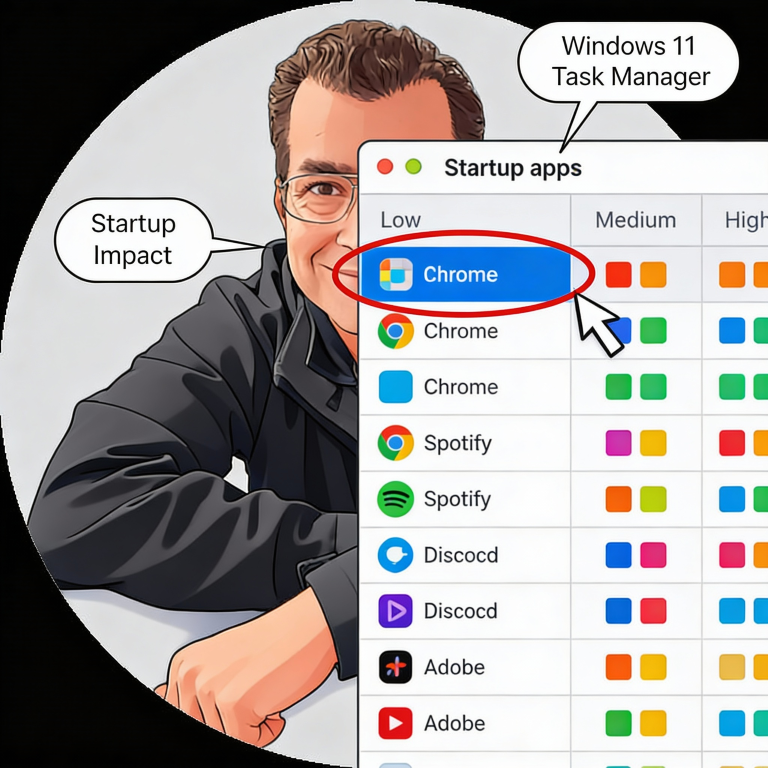
Task Manager remains the fastest method for most users. Right-click anywhere on your taskbar and select "Task Manager" from the menu.
Alternatively, press Ctrl+Shift+Esc for immediate access. Once open, click the "Startup apps" tab in the left sidebar.
You'll see a list of all programs configured to run at startup. Each entry shows the program name, publisher, status (Enabled or Disabled), and startup impact rating.
The impact rating of Low, Medium, or High indicates how much that program affects your boot time based on Microsoft's measurements.
To disable a program:
- Click on the program you want to disable
- Click the "Disable" button in the upper right corner
- Alternatively, right-click the program and select "Disable"
The change takes effect on your next restart. The program remains installed and fully functional and it simply won't launch automatically anymore.
Task Manager also shows useful diagnostic information.
Right-click any entry to access additional options including "Open file location" (helpful for identifying unfamiliar programs) and "Search online" (opens a web search for the program name).
The "Last BIOS time" displayed at the top right shows how long your hardware takes to initialise before Windows starts loading especially useful for distinguishing hardware delays from software bloat.
Managing Startup Apps in Settings For Your Small Business Computer System
The Settings app provides a cleaner, more visual interface for startup management. Open Settings by pressing Windows+I, then navigate to Apps > Startup.
This view shows the same programs as Task Manager but with toggle switches instead of Enable/Disable buttons.
Each app displays its impact rating and a brief description when available.
The toggle switches make it immediately clear which apps are currently enabled, and the interface feels less technical than Task Manager for users who prefer a more approachable experience.
Key advantages of the Settings approach:
- Visual clarity: Toggle switches show status at a glance
- Sorting options: Arrange by name, status, or startup impact
- App descriptions: Some entries include helpful context about what the program does
- Consistent Windows 11 design: Matches the overall system aesthetic
One limitation: the Settings interface sometimes shows fewer entries than Task Manager. Certain system-level startup items only appear in Task Manager or more advanced tools.
If you're doing a thorough cleanup, check both locations.
Advanced Startup Management Techniques For Small Business Computer Systems
Basic methods handle most situations, but some scenarios require deeper access.
Services that start with Windows, legacy programs that don't appear in standard startup lists, and complex boot configurations all need advanced tools.
Understanding how to manage startup programs on Windows 11 at this level gives you complete control over your system's behavior.
Using System Configuration (msconfig)
System Configuration, accessed by typing "msconfig" in the Start menu search, provides capabilities beyond Task Manager and Settings.
The tool has existed since Windows 98 and remains relevant for advanced troubleshooting and configuration.
The Startup tab in msconfig now redirects to Task Manager in Windows 11, but the Services tab offers unique value.
Here you can view and control Windows services and the background processes that run independently of user login.
Many applications install services that consume resources even when the main program isn't running.
To safely manage services:
- Open msconfig by pressing Windows+R, typing "msconfig," and pressing Enter
- Click the Services tab
- Check "Hide all Microsoft services" at the bottom because this prevents accidentally disabling critical Windows components
- Review remaining third-party services
- Uncheck services you want to prevent from starting
- Click Apply, then restart when prompted
The Boot tab offers additional options including Safe Mode access and boot timeout settings.
The "Make all boot settings permanent" checkbox should remain unchecked unless you specifically need persistent changes.
Practical uses for msconfig include:
- Disabling update services for programs you update manually
- Stopping telemetry services from applications that phone home excessively
- Troubleshooting conflicts by selectively disabling services to identify problems
- Reducing resource usage from helper services you don't need
Be cautious with services as disabling the wrong one can break application functionality or cause system instability.
When uncertain, research the specific service name before making changes.
Best Practices and Troubleshooting
Effective startup management isn't a one-time task. Programs add themselves to startup lists when you install them, update them, or sometimes seemingly at random.
Knowing how to manage startup programs on Windows 11 as an ongoing practice keeps your system running optimally over time.
Identifying Unnecessary Startup Programs
Not every startup program is obviously named. "Adobe GC Invoker Utility" doesn't scream "disable me," and "Microsoft Edge Update" sounds important even though it's not essential for startup.
Developing judgment about what to keep requires understanding common categories.
Programs you can almost always disable:
- Game launchers: Steam, Epic Games, GOG Galaxy, Origin (launch manually when gaming)
- Media players: Spotify, iTunes, VLC updaters
- Communication apps: Discord, Slack (unless you need instant availability)
- Cloud gaming: GeForce Experience, Xbox Game Bar (unless actively using features)
- Browser helpers: Chrome/Edge update services, browser companion apps
Programs you should typically keep enabled:
- Security software: Antivirus, firewall, endpoint protection
- Cloud storage you actively use: OneDrive, Dropbox (if you need real-time sync)
- Hardware drivers: Graphics utilities, audio managers (if they provide needed functionality)
- Accessibility tools: Screen readers, input assistance software
When uncertain about a specific program, search its exact name online. Include "startup" or "disable" in your search to find discussions from users who've made the same decision.
Most programs have clear community consensus about whether they're needed at startup.
Troubleshooting Startup Issues and Conflicts
Sometimes disabling startup programs causes unexpected problems. A program might not function correctly because it expected a helper service to be running.
Cloud storage might not sync properly. Hardware features might stop working.
Troubleshooting steps when something breaks:
- Identify the timeline: What did you disable most recently before the problem appeared?
- Re-enable systematically: Turn items back on one at a time, restarting between each
- Check dependencies: Some programs require companion services—the main app might need its "helper" or "updater" service
- Review error messages: Windows often indicates which component failed
- Use clean boot: Disable everything non-Microsoft via msconfig, then re-enable in groups to isolate conflicts
Common issues and solutions:
- Cloud storage not syncing: Re-enable the storage client's startup entry
- Printer not working: Check for disabled printer management services
- Audio problems: Graphics and audio drivers often have startup components that shouldn't be disabled
- Slow program launch: Some programs load faster when their startup component pre-loads resources
Schedule quarterly reviews of your startup programs. New installations add entries over time, and you might find programs you forgot you installed or no longer use.
A five-minute review every few months prevents gradual accumulation of startup bloat.
FAQ
Will disabling startup programs delete them from my computer?
Disabling a startup program only prevents it from launching automatically when Windows boots.
The program remains fully installed and functional and you can still open it manually whenever you want.
Think of it as telling the program to wait until you specifically ask for it rather than assuming you want it immediately.
How do I know if a startup program is safe to disable?
Research unfamiliar program names before disabling them. Security software, hardware drivers, and cloud storage clients often need startup access to function properly.
Game launchers, media players, and communication apps rarely need automatic startup.
When uncertain, search the exact program name plus "disable startup" to find community discussions about that specific application.
Can I undo changes if something stops working?
Yes because all startup changes are reversible. Return to Task Manager or Settings and re-enable any program you previously disabled.
The change takes effect on your next restart. If you made changes through msconfig services, return there and recheck the boxes for services you disabled.
How often should I review my startup programs?
A quarterly review works well for most users. New software installations frequently add startup entries, and programs you no longer use might still be launching automatically.
Spending five minutes every few months keeps your startup list clean and your boot times fast.
To wrap up, mastering how to manage startup programs on Windows 11 delivers immediate, noticeable improvements to your computing experience.
The techniques covered here are from quick Task Manager adjustments to advanced msconfig configurations and will give you complete control over what runs when your computer starts.
The key insight is simple: most startup programs exist for developer convenience, not user benefit.
Taking five minutes to disable unnecessary items can cut your boot time in half and free up significant system resources for programs you actually use.
Start with Task Manager today. Open it, review your startup list, and disable anything you don't need running immediately at boot.
Your computer will thank you with faster startups and snappier performance throughout your workday.