
How To Change Display Scaling On Windows 11 Computer For Business Owners In Melbourne
Running a business in Melbourne means juggling countless responsibilities every single day.
From managing staff and meeting clients in the CBD to reviewing spreadsheets and responding to emails, your computer screen is essentially your window to productivity.
Yet, many business owners overlook one crucial setting that can dramatically impact their work efficiency, comfort, and overall eye health: display scaling.
If you've ever squinted at tiny text in Microsoft Excel, struggled to read fine print in your accounting software, or found yourself experiencing headaches after a long day at your desk, the solution might be simpler than you think.
This guide will walk you through everything you need to know about changing display scaling on Windows 11, specifically tailored for Melbourne business owners who want to optimise their workstations for maximum productivity.
Why Display Scaling Matters For Melbourne Business Owners
Display scaling is essentially how Windows 11 adjusts the size of text, icons, apps, and other visual elements on your screen.
Think of it as a magnifying glass that makes everything larger or smaller without actually changing your monitor's resolution.
For Melbourne business owners working across various industries, whether you're running a cafe, managing a law firmin the CBD, or operating a construction company in the outher suburbs, the right display scaling settings can mean the difference between a productive workday and one plagued by eye strain and inefficiency.
The technology behind display scaling has evolved significantly since the early days of computing.
Modern high-resolution displays, including 4K monitors and high-DPI laptop screens, pack more pixels into the same physical space than ever before.
While this results in sharper images and crisper text, it also means that without proper scaling, everything on your screen would appear incredibly small.
Windows 11 addresses this by allowing users to scale the interface to maintain readability while taking advantage of the enhanced visual clarity that high-resolution displays provide.
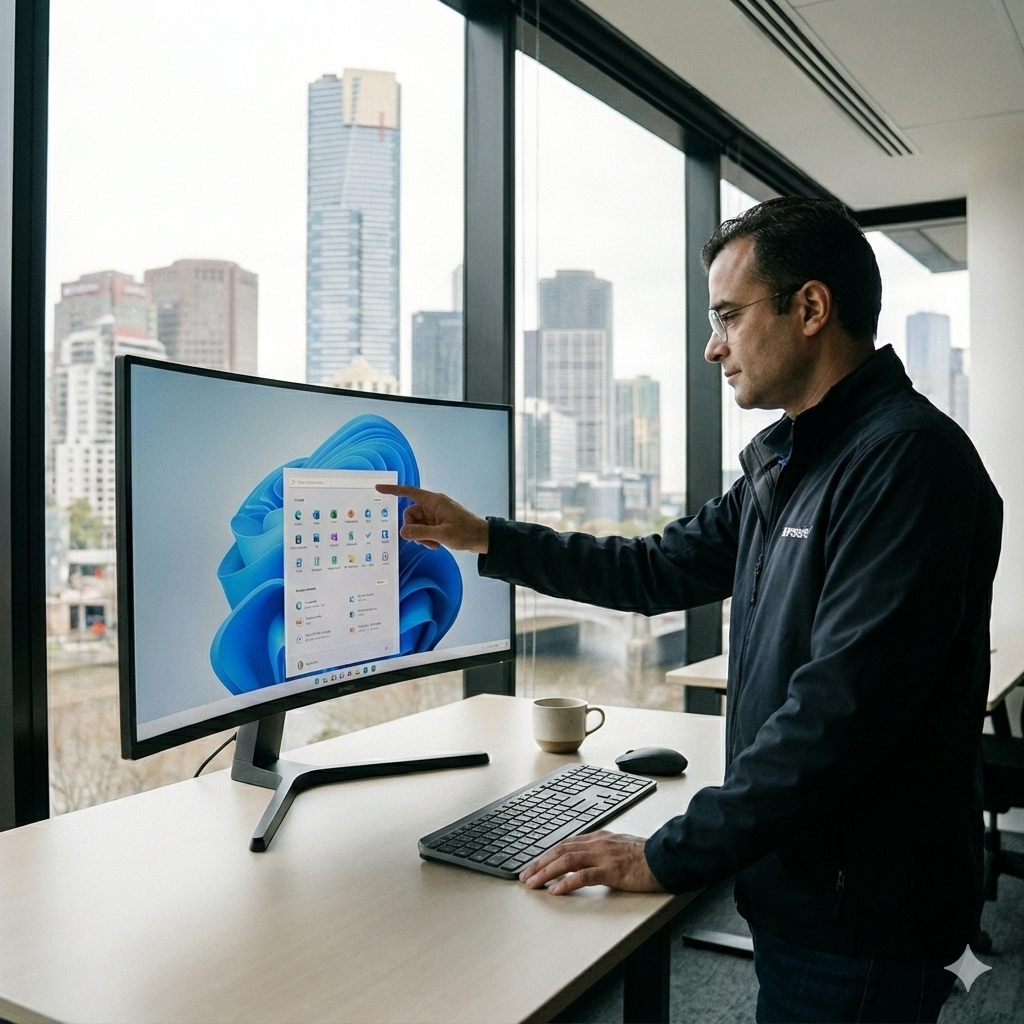
For business applications specifically, proper display scaling ensures that spreadsheets remain readable, emails are comfortable to scan through, and presentation materials look professional when viewed on your screen.
When you're preparing a pitch deck for a meeting with clients in South Yarra or reviewing financial reports for your Docklands-based company, having the right scaling settings allows you to work more efficiently and with less physical strain.
Is Proper Display Configuration Worth It For Small Business Owners In Melbourne
Before getting deep into the technical steps, it's worth understanding why display scaling deserves attention from a business perspective.
According to workplace health studies, visual discomfort is one of the leading causes of reduced productivity among office workers.
Employees who struggle to read their screens often experience fatigue more quickly, make more errors in data entry, and report lower job satisfaction overall.
For Melbourne business owners managing teams, ensuring that all workstations are properly configured can lead to measurable improvements in output and employee wellbeing.
Furthermore, as many Melbourne businesses have transitioned to hybrid working arrangements and with staff splitting time between offices in areas like Richmond, South Melbourne, or Hawthorn and home setups, maintaining consistent display configurations across different monitors and locations has become increasingly important.
An employee who works comfortably on a large monitor in the office may struggle with their laptop screen at home if scaling isn't properly adjusted for each environment.
The Australian Workplace Health and Safety guidelines recommend that employers take reasonable steps to ensure workstations are configured to minimise risks of injury and discomfort.
While display scaling might seem like a minor technical setting, it directly impacts the ergonomic quality of the visual workspace.
Proper configuration can help reduce the risk of eye strain, headaches, and the development of more serious vision problems over time.
Changing Display Scaling in Windows 11 For Small Business Owners In Melbourne
Now that you understand why display scaling matters, let's walk through the exact process of adjusting these settings on your Windows 11 computer.
This guide assumes you're using a standard Windows 11 installation, which is what most Melbourne businesses run on their office computers.
Accessing the Display Settings Menu
The first step in adjusting your display scaling is navigating to the appropriate settings menu.
Windows 11 has streamlined this process compared to earlier versions of the operating system, making it relatively straightforward even for users who aren't particularly tech-savvy.
To begin, locate the Start button in the centre of your taskbar at the bottom of the screen, this is the Windows logo that serves as your gateway to all system functions.
Click on this button to open the Start menu, and then look for the Settings icon, which resembles a gear or cog wheel.
Alternatively, you can use the keyboard shortcut by pressing the Windows key and the letter I simultaneously, which will open the Settings application directly.
Once the Settings window opens, you'll see a navigation panel on the left side listing various categories.
Click on "System," which should be the first option in the list.
This takes you to the system settings where you can configure various aspects of your computer's behaviour and appearance.
From the System submenu, click on "Display" to access the display-related settings.
This is where you'll find all the options for adjusting how content appears on your screen, including the crucial scaling settings we're focusing on.
Selecting the Correct Monitor for Multi-Display Setups
Many Melbourne business owners use multiple monitors to increase their workspace—a common setup in industries ranging from finance and accounting to graphic design and real estate.
If you have more than one display connected to your computer, whether that's a laptop with an external monitor or a desktop with a dual-screen configuration, you'll need to ensure you're adjusting the settings for the correct display.
At the top of the Display settings page, you'll see a visual representation of your connected monitors, typically shown as numbered rectangles that correspond to your physical screens.
Before making any scaling changes, click on the monitor you wish to adjust.
The selected display will be highlighted, and any changes you make will apply only to that particular screen.
This per-monitor approach is particularly useful because different displays often require different scaling settings, a 24-inch 1080p monitor might work well at 100% scaling, while a 27-inch 4K monitor might need 150% scaling to maintain comfortable readability.
Adjusting the Scale Setting
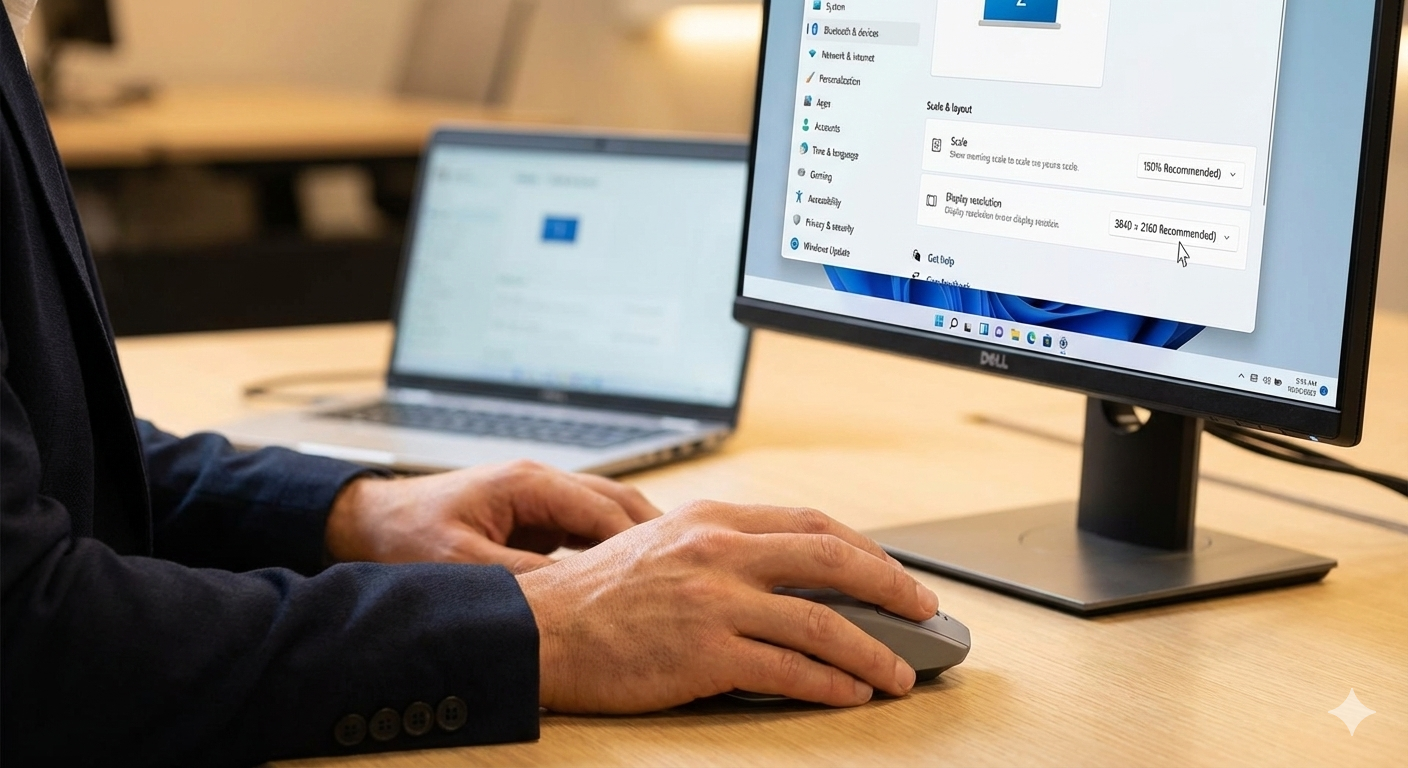
With the correct monitor selected, scroll down within the Display settings until you find the section labelled "Scale & layout."
This is the heart of display scaling configuration in Windows 11.
You'll see a dropdown menu next to the word "Scale" that shows your current scaling percentage.
By default, Windows 11 attempts to detect the optimal scaling for your display and will mark one option as "(Recommended)."
Clicking on the Scale dropdown reveals the available options, which typically include 100%, 125%, 150%, 175%, and 200%, though the specific options may vary depending on your monitor's resolution and capabilities.
The recommended setting is usually a good starting point, but many users find they prefer something slightly different based on their personal preferences and working habits.
For instance, if you're using a high-resolution monitor and find the recommended 150% scaling still results in text that feels too small, you might try 175% to see if that's more comfortable for extended work sessions.
It's important to note that changing the scale setting takes effect immediately, allowing you to see the results right away.
However, some applications may require you to sign out of Windows and sign back in, or even restart your computer, for the new scaling to be fully applied.
If you notice that certain programs look blurry or incorrectly sized after changing your scaling, a quick sign-out and sign-in usually resolves the issue.
Using Custom Scaling for Precise Control
While the preset scaling options work well for most users, Windows 11 also provides the ability to enter a custom scaling percentage for those who need more precise control.
This feature is particularly useful for Melbourne business owners who have specific requirements, perhaps you're working with design software that benefits from a particular scaling factor, or you've found that none of the preset options feel quite right for your eyes.
To access custom scaling, click on the "Scale" dropdown and then look for the option that says "Custom scaling" or click on the arrow next to Scale to expand additional options.
Here, you can enter any value between 100% and 500%, giving you fine-grained control over exactly how large everything appears on your screen.
However, Microsoft displays a warning when using custom scaling, noting that it can cause some applications to display incorrectly, with text appearing blurry or elements not sizing properly.
For most business applications like Microsoft 365, accounting software, and web browsers, standard scaling options work best, but custom scaling remains available when needed.
If you've previously set a custom scaling value and want to return to the standard options, you'll need to click the link that says "Turn off custom scaling and sign out."
This will revert to the standard scaling options and require you to sign back into Windows.
Optimising Display Settings for Common Business Scenarios In Melbourne
Different types of work benefit from different display configurations.
Here's how Melbourne business professionals in various roles might optimise their display scaling settings.
For Financial Professionals and Accountants
If you spend your days working with spreadsheets, financial modelling software, or accounting applications like MYOB or Xero, you'll want to find a balance between seeing as much data as possible on screen and maintaining comfortable readability.
Many accountants and financial analysts in Melbourne's business district prefer scaling between 100% and 125% on larger monitors, which allows them to view extensive spreadsheets without excessive horizontal scrolling while keeping numbers and text clear enough to read quickly.
On smaller laptop screens, 125% to 150% scaling typically provides better comfort for extended number-crunching sessions.
For Legal Professionals
Lawyers and legal professionals often work with dense documents, contracts, and case materials that require careful reading.
For these users, slightly higher scaling settings, around 125% to 150%, can reduce eye strain during long document review sessions.
Many legal firms in Melbourne's Collins Street or Bourke Street precincts have adopted this approach, finding that the slight reduction in visible content per screen is more than offset by improved reading comfort and reduced fatigue.
For Creative Professionals
Designers, photographers, and other creative professionals have unique scaling considerations.
While higher scaling makes interface elements more comfortable to work with, it also reduces the available canvas space for design work.
Many creative professionals prefer to work at 100% or 125% scaling on high-resolution displays, taking advantage of the extra screen real estate for their creative work while accepting smaller interface elements.
Some design applications also have their own internal scaling options that can be adjusted independently of Windows settings.
For Retail and Hospitality Managers
Business owners in Melbourne's vibrant retail and hospitality sectors often use their computers primarily for point-of-sale systems, inventory management, and email communication. For these applications, larger scaling settings (150% or even 175%) can make the interface faster to navigate, especially when staff need to quickly process transactions or check stock levels. The ability to see and tap on interface elements quickly often outweighs the benefit of fitting more content on screen.
Troubleshooting Common Display Scaling Issues
Even with proper configuration, you may encounter some issues related to display scaling. Here are solutions to the most common problems Melbourne business users experience.
Blurry Text and Applications
One of the most frequent complaints about display scaling is that some applications appear blurry, especially when running at scaling levels other than 100%. This occurs because not all software is designed to handle Windows' scaling properly—older applications or those designed for lower-resolution displays may not scale gracefully.
Windows 11 includes a feature to help address this automatically. Navigate to Settings, then System, then Display, and look for the "Advanced scaling settings" option under the Scale section. Here you'll find a toggle labelled "Fix scaling for apps." When enabled, Windows will attempt to fix apps that aren't responding correctly to your scaling settings. This won't solve every case, but it does improve the appearance of many problematic applications.
For specific applications that remain blurry, you can adjust their individual compatibility settings. Right-click on the application's executable file or shortcut, select Properties, and navigate to the Compatibility tab. Click on "Change high DPI settings," and in the dialog that appears, check the box for "Override high DPI scaling behavior" and select "System" or "System (Enhanced)" from the dropdown. This forces Windows to handle the scaling for that particular application, which often produces better results.
Different Scaling Across Multiple Monitors
When using multiple monitors with different resolutions or sizes, you may find that content appears at different sizes on each screen, even when using the same scaling percentage. This is normal behaviour—scaling is applied per-monitor, but the physical pixel density differences mean that identical scaling percentages can produce visually different results.
The solution is to set different scaling values for each monitor. In the Display settings, click on each monitor in turn and adjust its scaling independently until content appears visually consistent across all your displays. This might mean using 100% on a 24-inch 1080p monitor and 150% on a 27-inch 4K monitor, for example.
Applications Displaying at Wrong Size
Some applications, particularly older software or specialised business applications, may display at the wrong size regardless of your scaling settings. This can result in windows that are too large for your screen or interface elements that are impossibly small.
First, try the compatibility settings approach described above for blurry applications. If that doesn't help, check whether the application has its own internal display scaling or zoom options—many modern applications include these, and they can be used to compensate for Windows scaling issues. If all else fails, contacting the software vendor's support team may be necessary, as they may have specific recommendations for their application.
Advanced Tips for Multi-Monitor Productivity
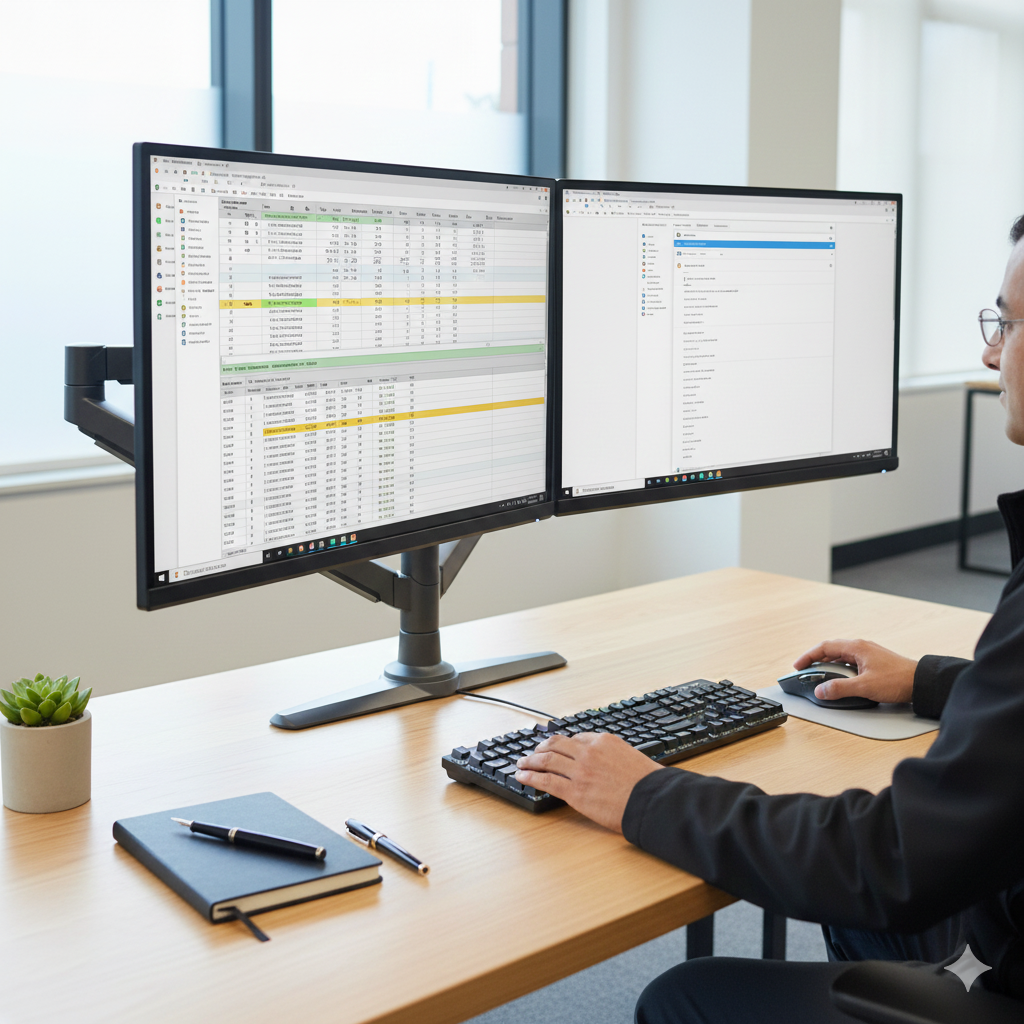
Melbourne business owners who use multiple monitors can take additional steps to optimise their display configuration beyond basic scaling settings.
Arranging Your Displays
In the Display settings, you can drag and drop the monitor icons to match the physical arrangement of your screens. Getting this right means that your mouse cursor will move naturally from one screen to another, improving workflow efficiency. If your secondary monitor is to the right of your primary display, make sure the corresponding icon in settings is also positioned to the right.
Setting Your Primary Display
Your primary display is where the taskbar appears by default and where new windows typically open. You can change this by selecting a monitor in Display settings and checking the box that says "Make this my main display." For most users, the largest or most frequently used monitor should be set as primary.
Display Orientation for Vertical Monitors
Some business users, particularly those who work with long documents or code, benefit from using a monitor in portrait (vertical) orientation. Windows 11 makes this easy—simply select the appropriate monitor in Display settings and change the "Display orientation" dropdown from "Landscape" to "Portrait." Remember that you'll also need to physically rotate the monitor to match.
Maintaining Optimal Display Health
Proper display scaling is just one component of maintaining a healthy visual workspace. Melbourne business owners should also consider these additional factors.
Ambient Lighting
The lighting in your office space affects how comfortable your display appears. Ideally, ambient lighting should be roughly equal to the brightness of your screen—neither too bright nor too dark in comparison. Many Melbourne offices have excellent natural light from large windows, which is great for general wellbeing but may require adjusting screen brightness throughout the day or using blinds to prevent glare.
Take Regular Breaks
Even with perfect display scaling, staring at a screen for extended periods can cause eye strain. The 20-20-20 rule is a useful guideline: every 20 minutes, look at something 20 feet (about 6 metres) away for 20 seconds. This gives your eye muscles a break from the constant close-focus work of computer use.
Regular Eye Examinations
If you or your employees continue to experience visual discomfort despite optimal display settings, consider scheduling an eye examination. Many Melbourne optometrists specialise in occupational vision assessments and can provide prescription glasses specifically designed for computer use, which may include special lens coatings or focusing adjustments that reduce strain.
Investing In Visual Workspace For Melbourne Business Owners
Display scaling might seem like a minor technical detail, but for Melbourne business owners and their teams, getting it right represents a genuine investment in productivity and wellbeing. The few minutes it takes to properly configure your Windows 11 display settings can pay dividends in reduced eye strain, fewer headaches, faster work completion, and greater overall comfort during the workday.
Whether you're running a boutique consultancy in St Kilda, managing a wholesale business in Footscray, or operating a professional services firm in the CBD, the principles remain the same: match your display scaling to your monitor's resolution, your personal visual preferences, and the type of work you do most frequently. Don't be afraid to experiment with different settings until you find what works best for you—the ability to adjust these settings quickly and easily is one of Windows 11's many user-friendly features.
As technology continues to evolve and higher-resolution displays become increasingly common in the workplace, understanding and managing display scaling will only become more important. By taking the time to configure these settings properly now, you're not just solving today's visual comfort issues—you're building the knowledge and habits that will serve your business well into the future.
For Melbourne business owners looking to take their workspace optimisation further, consider consulting with local IT professionals who can assess your entire office setup and make recommendations tailored to your specific needs. Many Melbourne-based IT support companies offer workplace ergonomic assessments that include display configuration as part of a comprehensive approach to creating healthy, productive work environments.