

Will the New Edge Settings Page Finally Make it a True Chrome Competitor?
For Small Business Owners Of Melbourne, where every minute counts, the tools we use every day can be the difference between a productive afternoon and a frustrating one.
For many, the web browser is the central hub of operations, the main source of information.
The most important question for business owners has long been which browser offers the least friction and the most power.
Now, with Microsoft's latest update, we must ask: Will the new Edge settings page finally make it a true Chrome competitor?
For years, Google Chrome has been the undisputed champion of the browser world, mainly for its simplicity, speed, and clean user interface.
Its settings menu, in particular, is a masterclass in organisation, allowing users to find what they need without a map and compass.
Meanwhile, Microsoft Edge, despite being a powerful and feature-rich browser built on the same foundation as Chrome, has often been held back by a perception of complexity.
The biggest issue being the settings page, as it was very overwhelming for the business owners, options where there, but it was like finding a needle in a haystack.
This single point of friction has been a significant barrier to adoption for many businesses. When your team has to dig through endless menus to clear a cache, manage passwords, or tweak security settings, you're losing valuable time.
It’s a small drain, but across a team of ten, twenty, or fifty employees, those minutes add up to hours of lost productivity every month.
But the browser wars are heating up, and Microsoft is making a direct play for the professional user.

They've recognised that a feature is only useful if it can be found, and they’re launching a major redesign of the Edge settings experience aimed squarely at fixing this long-standing issue.
This isn't just a fresh coat of paint; it's a fundamental rethinking of user navigation, designed to be more intuitive, streamlined, and, dare we say, more like Chrome.
The Old Edge vs. the Chrome Benchmark For Small Business Owners In Melbourne
To understand the significance of this update, we first need to appreciate the problem Microsoft is solving.
The "Everything but the Kitchen Sink" Approach For Business Owners
Historically, the Settings page in Microsoft Edge was a long, scrolling list of categories and sub-settings.
While comprehensive, it lacked a clear hierarchy.
Options for "Privacy, search, and services" contained a dizzying array of toggles and links, while "Appearance" and "System and performance" were separate but related concepts that could easily be confused.
For a business owner in Melbourne trying to configure browsers for a new team, this was a headache.
Ensuring that tracking prevention was set correctly, that performance settings were optimized for efficiency, and that company bookmarks were synced required navigating a maze of menus.
This complexity created an unnecessary reliance on IT support for what should have been simple tasks.
Why Chrome's Settings Won Hearts and Minds Of Small Business Owners
Google Chrome took a different approach. Its settings are grouped into logical, high-level categories that are immediately understandable:
"You and Google," "Autofill," "Privacy and security," "Appearance," "Search engine," and "Advanced."
The key to its success is discoverability.
A user who has never opened the settings before can make an educated guess about where to find something and be right most of the time.
Want to change how the browser looks? "Appearance." Worried about cookies? "Privacy and security."
This intuitive design reduces cognitive load and empowers users to manage their own experience, which is a massive win for business efficiency.
The Edge Evolution: A Guided Tour of the New Settings
Microsoft’s update is a direct response to this feedback, adopting a "best of both worlds" philosophy. It retains Edge's powerful features while presenting them in a much more digestible format.
The New Quick Access Panel Tool For Small Business Owners
The most significant change is the introduction of a new quick access panel directly under the main Settings menu.
Think of this as the digital equivalent of putting your most-used files on top of your desk instead of in a filing cabinet.
Microsoft’s user data suggests that a handful of settings account for the majority of user adjustments. This panel will provide shortcuts to these high-traffic areas, likely including:
- Profile Settings: Managing your sync, passwords, and payment information.
- Privacy: Quick access to tracking prevention and clearing browsing data.
- Appearance: Instantly switch between light and dark modes or customize fonts.
This change alone will dramatically reduce the number of clicks required for common tasks, turning a 30-second chore into a 5-second fix.
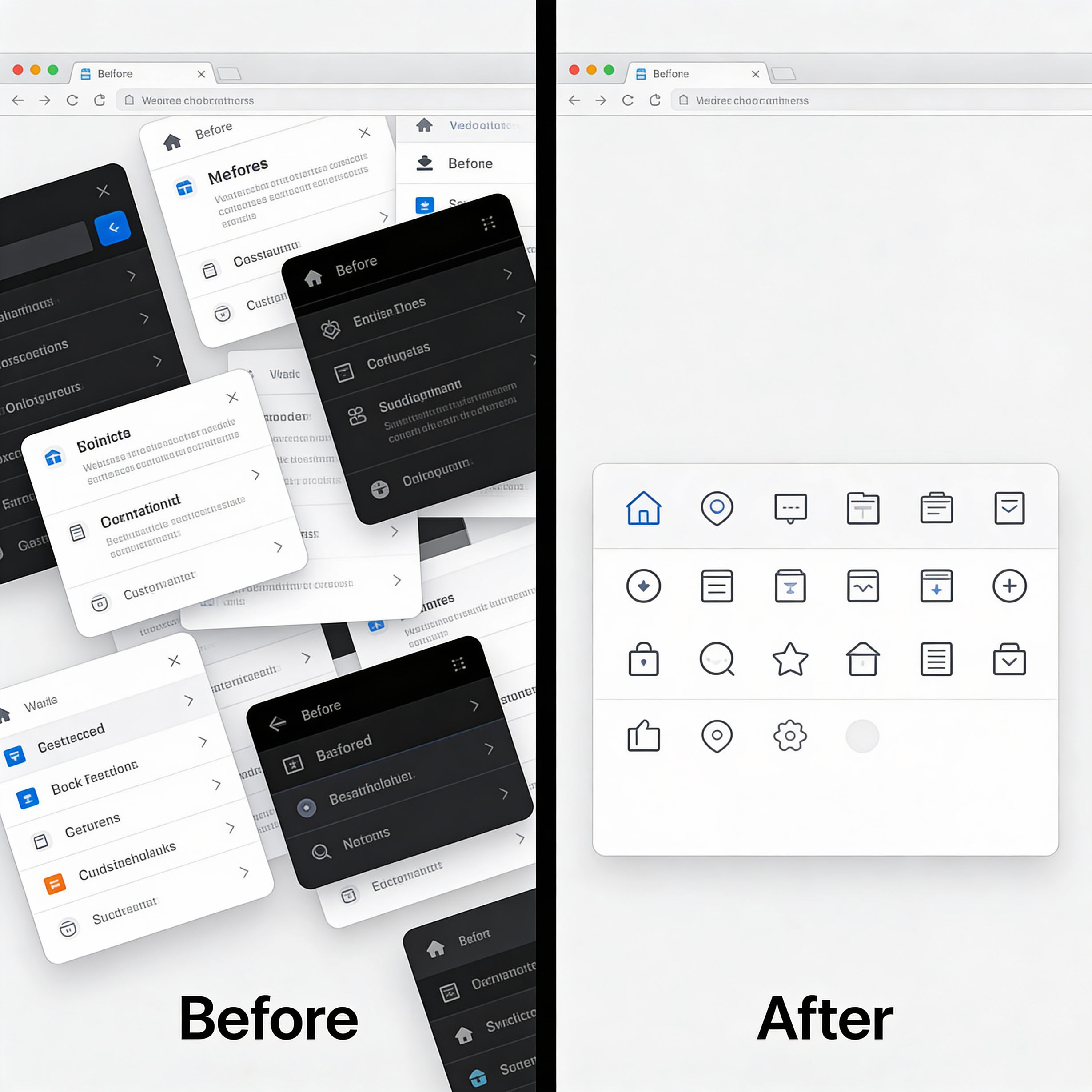
Smarter Submenus To Find Exactly What Business Owners Need
Beyond the quick access panel, the entire settings list has been re-catalogued into smaller, more logical submenus.
Gone is the single, overwhelming list. In its place are clearly defined categories like:
- System and Performance: This menu will consolidate all the tools related to browser speed, efficiency, and resource management. This is where you’ll find the controls for "Sleeping Tabs" and "Startup boost," two of Edge’s standout performance features.
- Appearance: This will house everything related to the visual customisation of the browser, from themes and fonts to the layout of the toolbar.
- Privacy and Security: A dedicated hub for managing cookies, site permissions, tracking prevention, and Microsoft Defender SmartScreen settings.
Even better, these submenus will have their own internal quick access shortcuts, creating a multi-layered system that guides you exactly where you need to go.
It’s a change that respects the user's time and intelligence.
Why This Matters for Melbourne Small Business Owners
A browser settings update might seem minor in the grand scheme of running a business, but its impact on day-to-day operations can be profound, especially in a competitive market like Melbourne's.
- Enhanced Productivity: The primary benefit is time. Less time spent hunting for settings means more time spent on billable work, client communication, and strategic planning. For a team of 20, saving just two minutes per employee per day on tech frustration adds up to over 13 hours of productive time saved per month.
- Stronger Security Posture: With security settings now easier to find and understand, your team is more likely to use them correctly. Configuring tracking prevention and managing site permissions becomes a simple, proactive task rather than a reactive, IT-driven one. This is crucial for businesses handling sensitive client data, from financial services firms in the CBD to healthcare providers in the suburbs.
- Reduced IT Overhead: A more intuitive interface means fewer "how do I...?" support tickets for your IT department or managed service provider. This frees up technical resources to focus on more critical infrastructure projects instead of routine browser queries. It also streamlines the onboarding process for new employees, who can get up to speed on company-standard browser configurations faster.
- Leveraging Edge-Exclusive Features: An easier settings menu makes it more likely that your team will discover and use Edge’s other powerful, business-centric features like Collections for project research, Vertical Tabs for managing dozens of open tabs, and IE Mode for compatibility with legacy government or enterprise web applications.
So, back to our original question: Does this update make Edge a true Chrome competitor for businesses?
The answer is an emphatic yes.
With this redesign, Microsoft has addressed one of the last major usability hurdles that kept many businesses firmly in the Google ecosystem.
By simplifying the settings, they have made all of Edge’s other advantages—its superior performance on Windows, robust security features, and innovative tools like Collections—far more accessible.
For Melbourne businesses that are deeply integrated with the Microsoft 365 ecosystem (using Teams, SharePoint, and Office), the argument for switching to Edge is now overwhelming.
The seamless integration, combined with a newly simplified user experience, creates a powerful and cohesive digital workplace.
Chrome is still a fantastic browser, but its primary advantage was its simplicity.
With this update, Edge is not just matching that simplicity; it's combining it with a suite of professional-grade tools that Chrome lacks natively.
The competition is no longer one-sided. It’s time to give Edge another look.